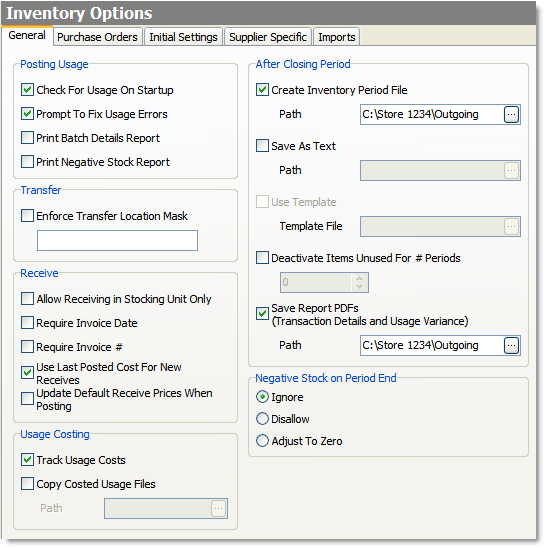
The options on the General tab apply to all Inventory batches. Review these settings as explained in the clickable image below, and select or change as required for your store.
1.Go to the Settings> Inventory Settings> Inventory Options  > General tab.
2.Change the general Inventory settings as required. Click in the image below to see a description of each setting.

3.On the Edit menu, click Save Changes.
Inventory Setup SpeedStart Tutorial 


•Inventory Setup Tutorial Home
•Step 1: Add a Year of Periods
•Step 2: Import Stock Items from Menu
•Step 3: Add Global Unit of Measure Conversions
•Step 4: Add Supplier Information
•Step 5: Enter General Stock Item Information
•Step 6: Add Custom Unit Conversion
•Step 7: Enter Stock Item Count Units and Locations
•Step 8: Assign Stock Items to a Supplier
You are here  Step 9: Set General Inventory Options
•Step 10: Set Purchase Order Options
•Step 12: Set End of Day Options