1.Go to Settings> Inventory Settings> Suppliers. 
2.If it is not depressed, click the Pin Edit Window button  to pin the details pane.
3.Click the Add button  on the toolbar.
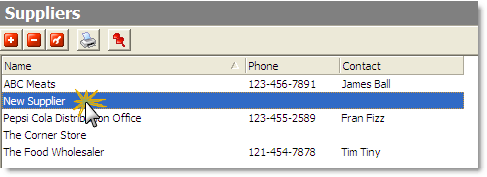
4.Enter the supplier's name and contact information.
5.Repeat steps 3 and 4 to enter all of the suppliers your store uses.
Inventory Setup SpeedStart Tutorial 


•Inventory Setup Tutorial Home
•Step 1: Add a Year of Periods
•Step 2: Import Stock Items from Menu
•Step 3: Add Global Unit of Measure Conversions
You are here  Step 4: Add Supplier Information
•Step 5: Enter General Stock Item Information
•Step 6: Add Custom Unit Conversion
•Step 7: Enter Stock Item Count Units and Locations
•Step 8: Assign Stock Items to a Supplier
•Step 9: Set General Inventory Options
•Step 10: Set Purchase Order Options
•Step 12: Set End of Day Options