The data in the Sales and Item Summaries can be exported to five different file formats:
•Microsoft Excel
•CSV (comma-separated values)
•Text
•HTML
•XML
To Export Sales or Item Summary Data
1.Go to Today> Today's Tools> Sales Summary  or Item Summary.
2.Do one of the following to choose a format for the exported report:
•To export the report to Microsoft Excel, on the toolbar, click the Export button. 
-or-
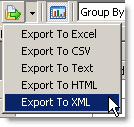
•To choose an export format from a list:
a.On the toolbar, click the drop-down arrow beside the Export button. 
b.Choose an export file format from the list.
3.Browse to the location you wish to save the file to.
4.Enter a file name and click Save. The data is saved in the format you specified.
|
Note The export process may take a few minutes if you are working with large sets of data. |

See also: