Follow the steps below to change the properties (times, fees, store, or quoted time) of existing delivery zones. To add a new zone, see Add a New Delivery Zone. If you want to allow deliveries to the zone only at certain times, see Restrict Delivery Times for a Zone.
1.Go to Settings> People> Delivery Zones. 
2.Find the zone to change.
3.If using LiveMaps [The LiveMaps optional add-on allows you to base your customer address validation, delivery zones, driving directions, and reporting on live, up-to-date maps provided by an online mapping provider. Display maps on a second monitor, email directions to your drivers' smartphones, and more. Talk to your SpeedLine Sales representative for more informaion.], to change the color associated with a zone, click the zone master in the list (for example, Delivery Zone: 2) and then click the Edit button. 
|
Hint If you have a long list of delivery zones, you can find a zone quickly by typing the zone caption into the search field at the top of the table. |

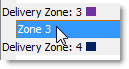
4.To change fees, charges, or times, double-click the zone detail (the indented row under the zone master), or click the zone detail and then click the Edit button.
5.In the Edit Zone Detail window, change the properties for the zone. Click the image below to see an explanation of each setting.

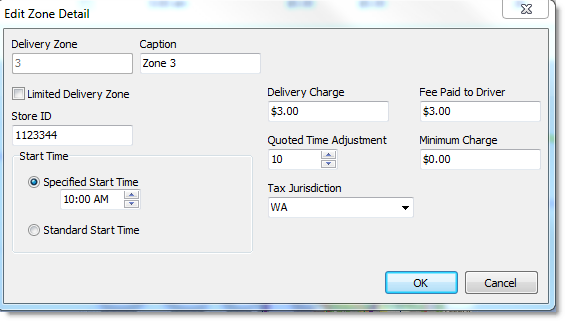
6.After changing the properties as required, click OK.
7.To automatically change the charges, fees, or quoted time adjustment for deliveries to the zone at a certain time of day, you must add a second zone detail entry for the master zone:
a.Click the master zone (for example, Delivery Zone:1) to select it.
b.In the top toolbar, click the Add button,  and then click Add Zone Detail.
c.In the Caption field, enter a name for this zone, for example, "Zone 1 Evening."
d.In the Specified Start Time field, type or select the time that changes in charges, fees, or quoted times will come into effect. The changes will be in effect until the next zone detail's start time (if there is another for the zone), or until the Standard Delivery Start time, whichever occurs first.
e.Change the settings as required. See the clickable image above for an explanation of each setting.
8.Refresh Terminal to implement the new delivery zone settings.